2. CAD-to-CSG decomposition
The MCIO code uses the Open Cascade thin wrapped Python package OCP, and can take a STEP CAD file and convert it into a CSG model, which can then be written to an MCNP input deck or OpenMC XML files.
2.1. Running from the command line
The MCIO CAD-to-CSG decomposer can be run with the default values via the command line, running with single or multiprocess, and optionally with debugging and/or allowing failures to convert.
python -m mcio decompose -i my_model.stp --cores 8 --materials materials.json
To check if a model converts, it is useful to use the command line method using multiple cores. This will try to convert all bodies, with any bodies which fail to convert being saved to individual step files in the analysis/failed_to_convert directory. Typically, this will be caused by bodies being too complex or having possible geometry errors within them.
Possible reasons for failures:
Inexact edges (most common errors), to fix or split on edges, particularly with pipes
Solids too complex, try splitting them up into multiple bodies
Bad geometry, try to fix geometry errors or de-draw solids
Contain faces which don’t currently convert, such as off axis tori or splines
2.2. Running via the Python API
The MCIO CAD-to-CSG decomposer allows for either single core or multiple core use via the “multiprocessing” package. The latter provides significant speed increases during conversion but requires some boiler plate code to run, an example of which is given below.
2.2.1. Single core example
# import the decomposer class from mcio
import mcio

# define your list of step files to combine into a single model
step_files = ['my_model_1.stp', 'my_model_2.stp']

# create an instance of the decomposer
decomposer = mcio.decompose.Decomposer(step_files, materials_file_path='materials.json')

# run the decomposer on a single core
decomposer.run(cores=1)

# save the model to an mcnp input deck
decomposer.model.write_mcnp('model.i')

# save the model to a folder of openmc xml files
decomposer.model.write_openmc('openmc_model')
2.2.2. Multiprocess example
Increasing the number of cores requested in the .run(cores=20) method allows
the decomposer to run via multiprocessing, but this requires the
if __name__ == "__main__": guard to be placed around the code, otherwise an
infinitely recursive import will be triggered.
import mcio

# set up guard to stop recursive imports
if __name__ == '__main__':
    # define path to step files
    step_files = ['my_model_1.stp', 'my_model_2.stp']

    # create the decomposer and run on 20 cores
    decomposer = mcio.decompose.Decomposer(step_files, materials_file_path='materials.json')
    decomposer.run(cores=20, debug=False)

    # save the models to mcnp or openmc
    decomposer.model.write_mcnp('model.i')
    decomposer.model.write_openmc('openmc_model')
2.2.3. Assigning materials
Materials can be assigned within the CAD file either via setting the RGB colour of the solid or via the addition of a label of the form m
python -m mcio decompose -i my_model.stp --cores 8 --materials materials.json
# create an instance of the decomposer, and provide path to json for materials
decomposer = mcio.decompose.Decomposer(['my_model.stp'], materials_file_path='materials.json')
2.2.3.1. Assign by label (m
The below image shows material assignment via the label method, with an example of the required accompanying material definition in JSON format.
Warning
A single solid within a component, such as sphere_4 in the example below, will lose its label as OCP will assign the parent component to the solid.
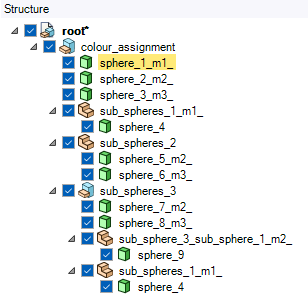
Material assignment by label in the CAD structure tree.
{
    "m1": {
        "density": 0.997,
        "composition": {
            "H": 0.666667,
            "O": 0.333333
        },
        "number": 100,
        "reference": "",
        "fraction_type": "ao",
        "density_type": "g/cc",
        "name": "Water, Liquid",
        "mcnp": {
            "sab_cards": [],
            "libs": {},
            "library": ".32c",
            "library_by_isotopes": {"O18": ".80c"}
        }
    }
}
2.2.3.2. Assign by RGB colour
When assigning by RGB, the JSON should contain the RGB value as a string key in the format <red>_<green>_<blue>, with each value zero padded to three digits.
{
    "000_128_064": {
        "density": 0.997,
        "composition": {
            "H": 0.666667,
            "O": 0.333333
        },
        "number": 100,
        "reference": "",
        "fraction_type": "ao",
        "density_type": "g/cc",
        "name": "Water, Liquid",
        "mcnp": {
            "sab_cards": [],
            "libs": {},
            "library": ".32c",
            "library_by_isotopes": {"O18": ".80c"}
        }
    }
}
2.2.4. Debugging problem solids
CAD-to-CSG decomposition can fail or cause problems with lost particles, which can also have a wide range of reasons for these issues. The failed cad solids will be output to the analysis/failed_to_convert/ directory, which can then be loaded into your chosen CAD software. A text file containing the exception for each failed solid is output to the analysis/trackbacks/ directory.
Some common issues are:
Inexact edges on connected 2nd order faces, particularly cylinders joined at an angle
Rounding errors in coincident surface
Rounding errors introduced during the splitting / cut / common operations in OCP
Overlapping geometry
Failure to generate correct void space
Incorrect auxiliary surface generation
Solids slow to convert as too complex for recursive splitting
There is also a command line tool for extracting the lost particles from an MCNP output file, which produces a step file with spherical points and lines as vectors for the particles directions. This can be accessed via the command line tool.
python -m mcio lost_particles -i my_mcnp_run.o -o lost_particles.stp --max_particles 100 --radius 0.5 --vector_length 200.0
Or it can be scripted using the function lost_particles_from_mcnp_run
from mcio.diagnostic import lost_particles_from_mcnp_run

lost_particles_from_mcnp_run(
    'my_mcnp_run.o',
    output_file_path='lost_particles.stp',
    max_particles=100,
    radius=0.5,
    vector_length=200.0
)
2.2.5. Altering the decomposition parameters
The Decomposer() has a set of default parameters for carrying out decomposition and conversion to CSG. These parameters can be printed using a python script.
# import mcio
import mcio

# create instance of DecompositionParameters containing default values
decom_params = mcio.decomposeparams.DecompositionParameters()

# write these to screen as a table, with a description of each parameter
print(decom_params)

# write to json
decom_params.write('decompose_parameters.json')

# read in decomposition parameters, and pass them to the decomposer
decom_params = mcio.decomposeparams.DecompositionParameters.read('decompose_parameters.json')
decomposer = mcio.decompose.Decomposer(['my_model.stp'], decompose_parameters=decom_params)
The default decomposition parameters are:
Parameter |
Value |
Description |
|---|
The command line tool for decomposition can also read in a set of decomposition parameters.
python -m mcio decompose -i my_model.stp -rdp decom_parameters.json