The Main Window
Menubar
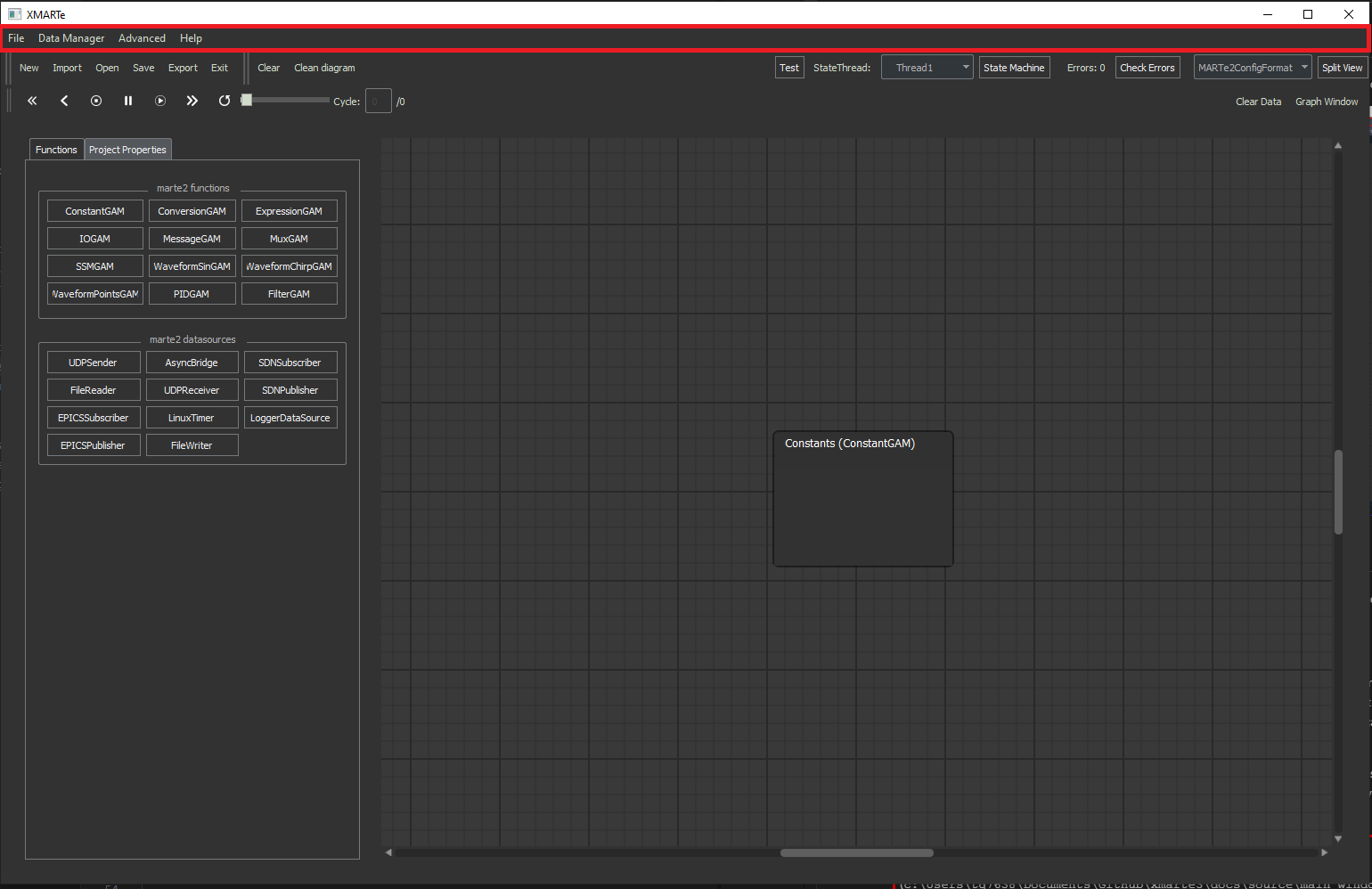
The menubar is defined as below and provides several menu operation outlined in the below documentation here.
Toolbar
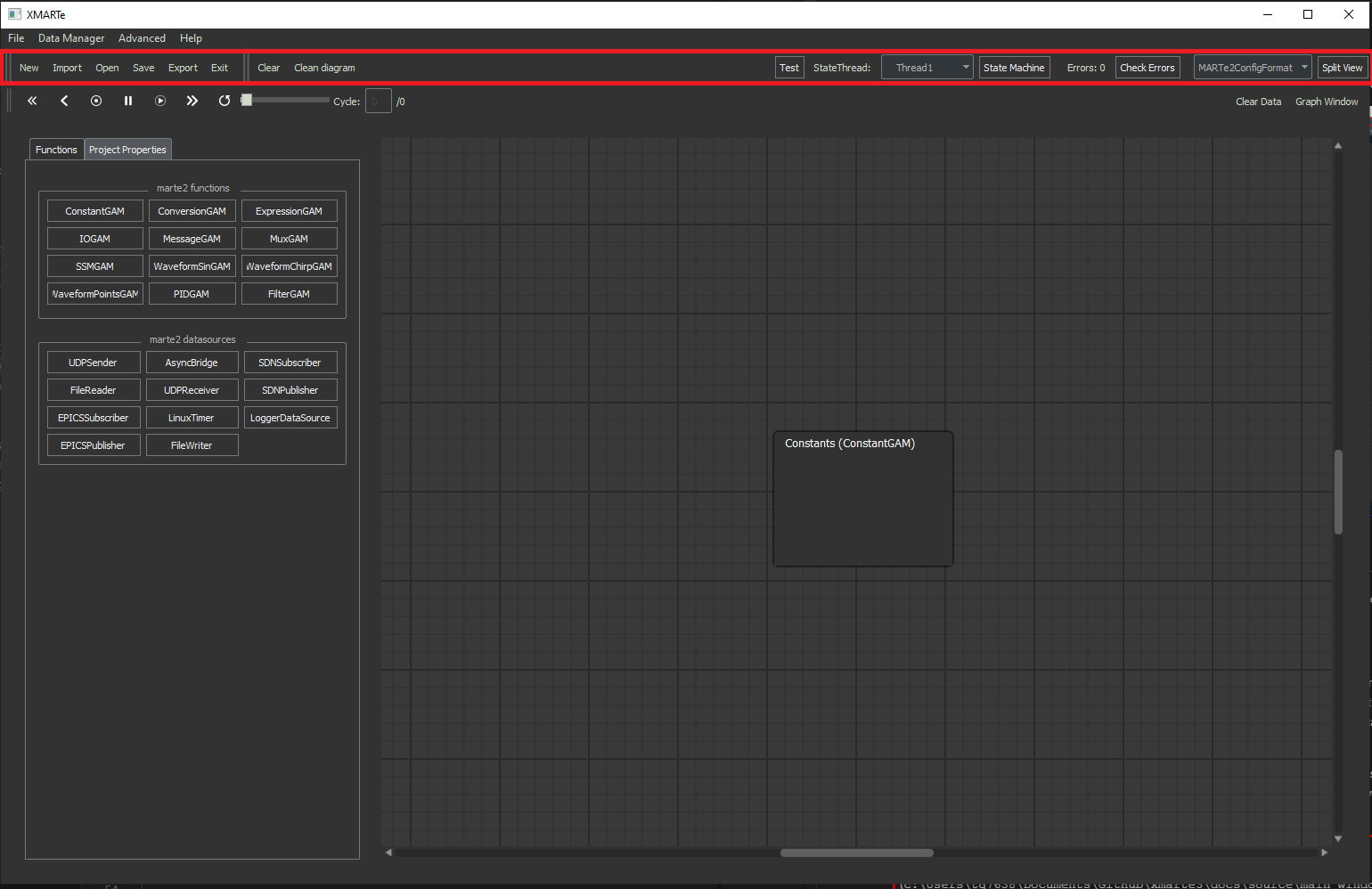
The toolbar is defined as given below and gives standard functions on the left hand side including the file menu functions. The toolbar also includes the functions:
Test Operations
Test: This button will open the test simulation window.
State Machine Operations
StateThread: Selects the state and thread to configure in the block diagram.
State Machine: Loads a window to allow you to configure the state machine, application states and threads.
Application Operations
Check Errors: Opens a window which provides feedback on the current application errors.
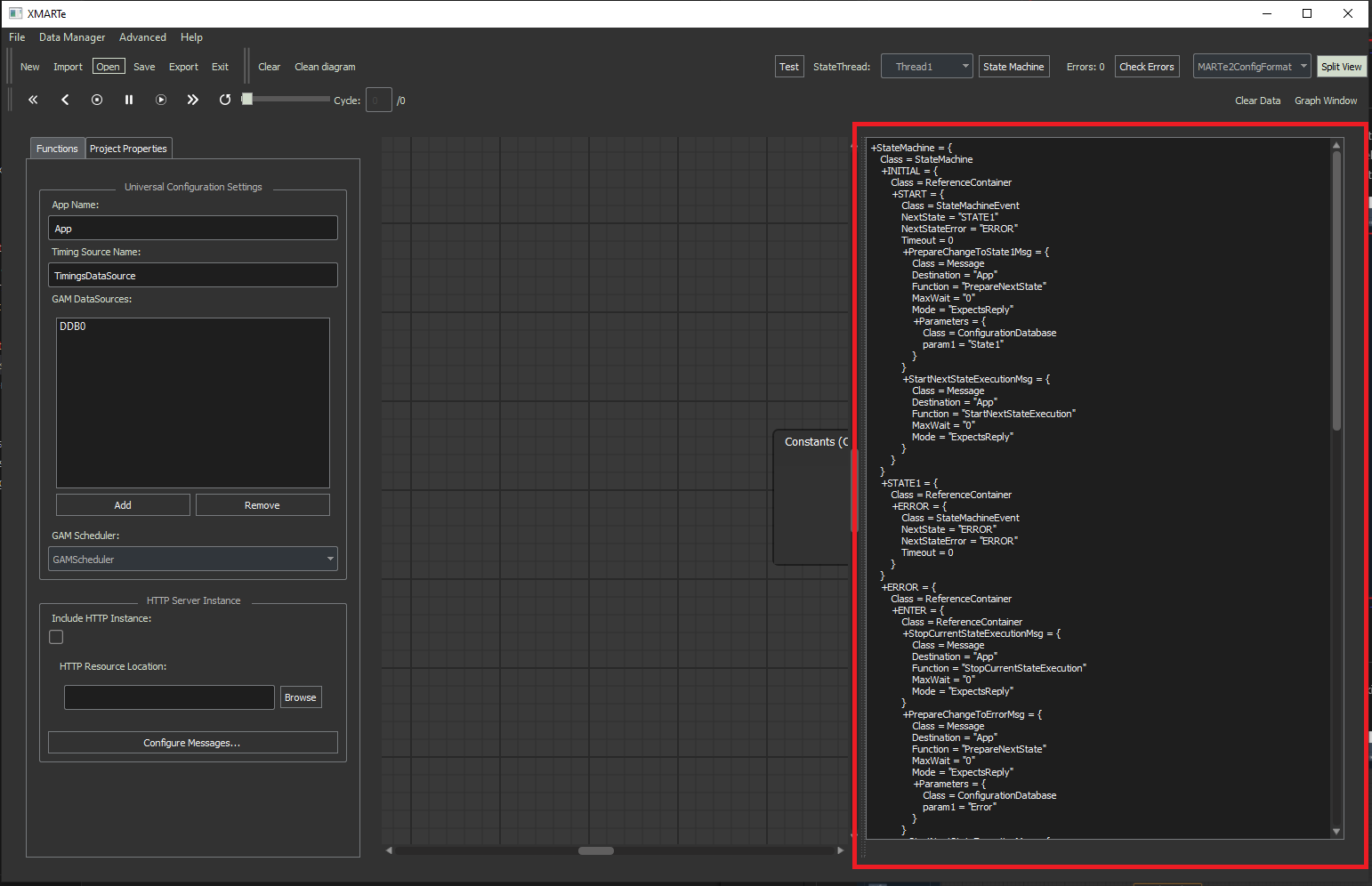
Split View: Toggles the text based view of the .cfg output.
Data Operations
Playback Buttons: When data is loaded into nodes by running a simulation or using Import Data from a matching CSV to the application, you can play the data in the diagram via this playback toolbar.
Clear Data: clears data from the existing application GAMs and DataSources.
Graph Window: Opens the graph plotting tool.
Block Panel
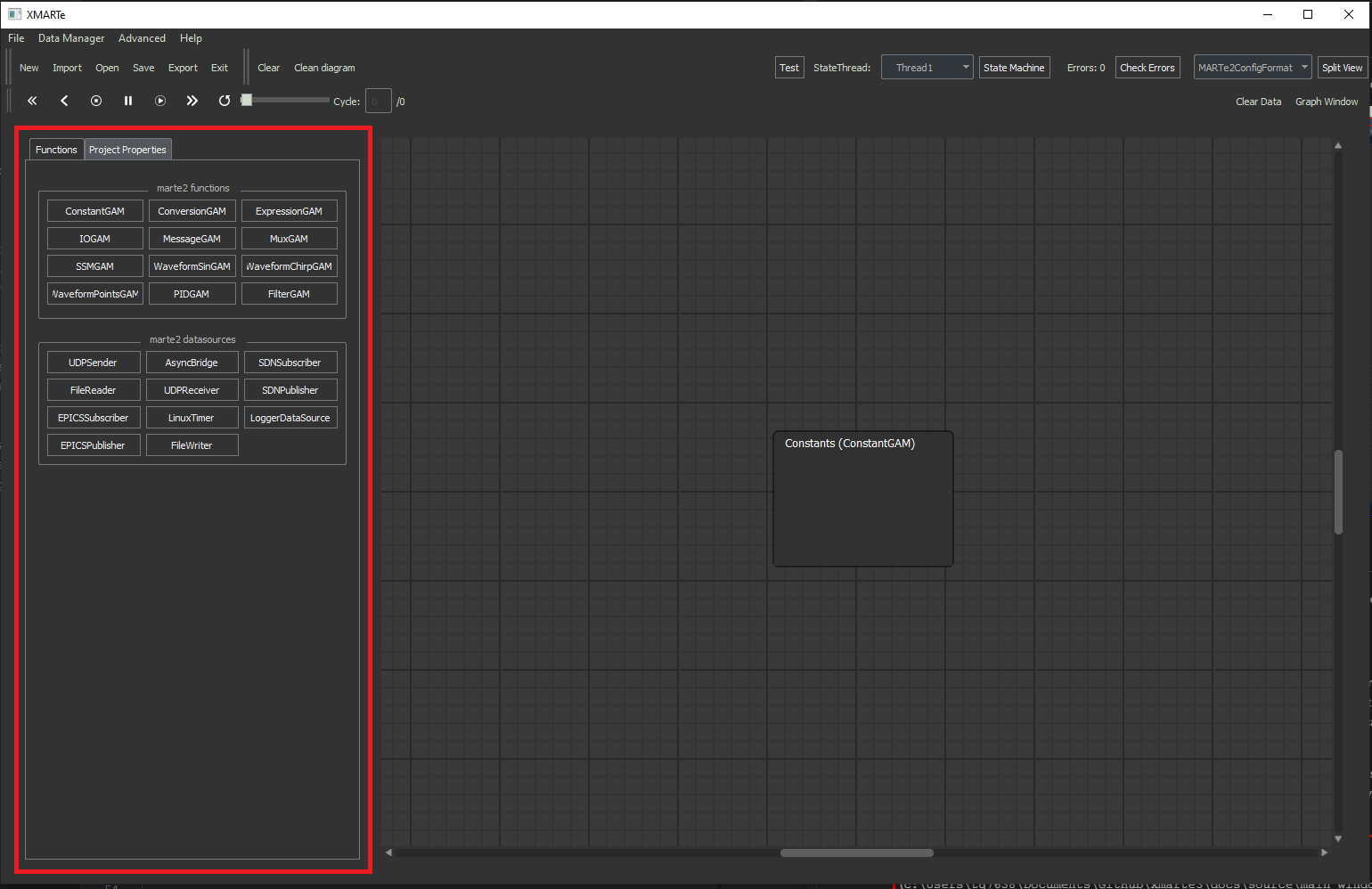
This panel includes all the available blocks you can add to the state and threads, either as GAMs or DataSources.
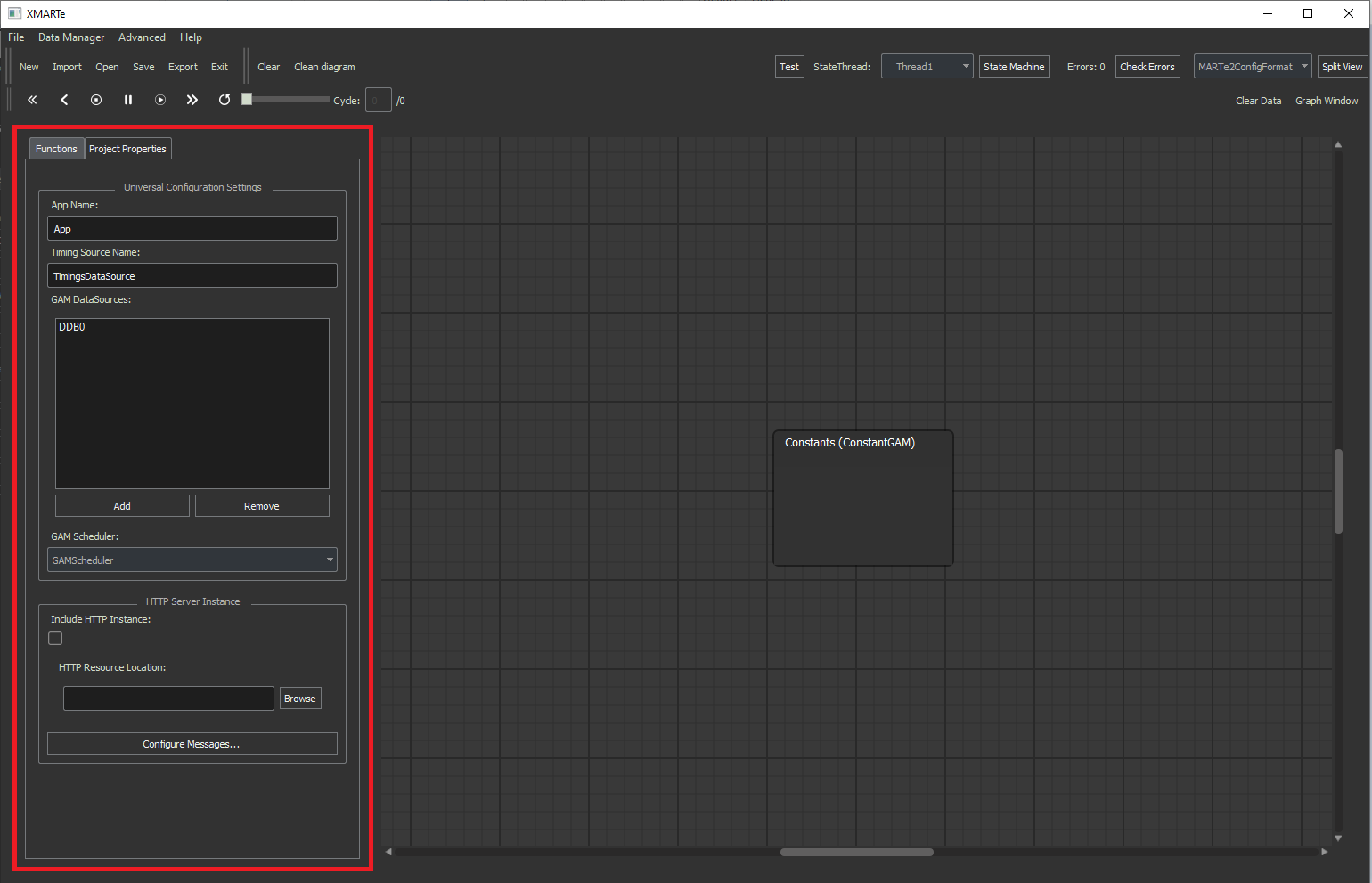
Project Properties
This section allows you to configure the application properties where you can:
Add/Rename/Delete GAM DataSources.
Change the application name.
Add and configure a HTTP Web Service.
Set the Timing DataSource name.
Set the application Scheduler.
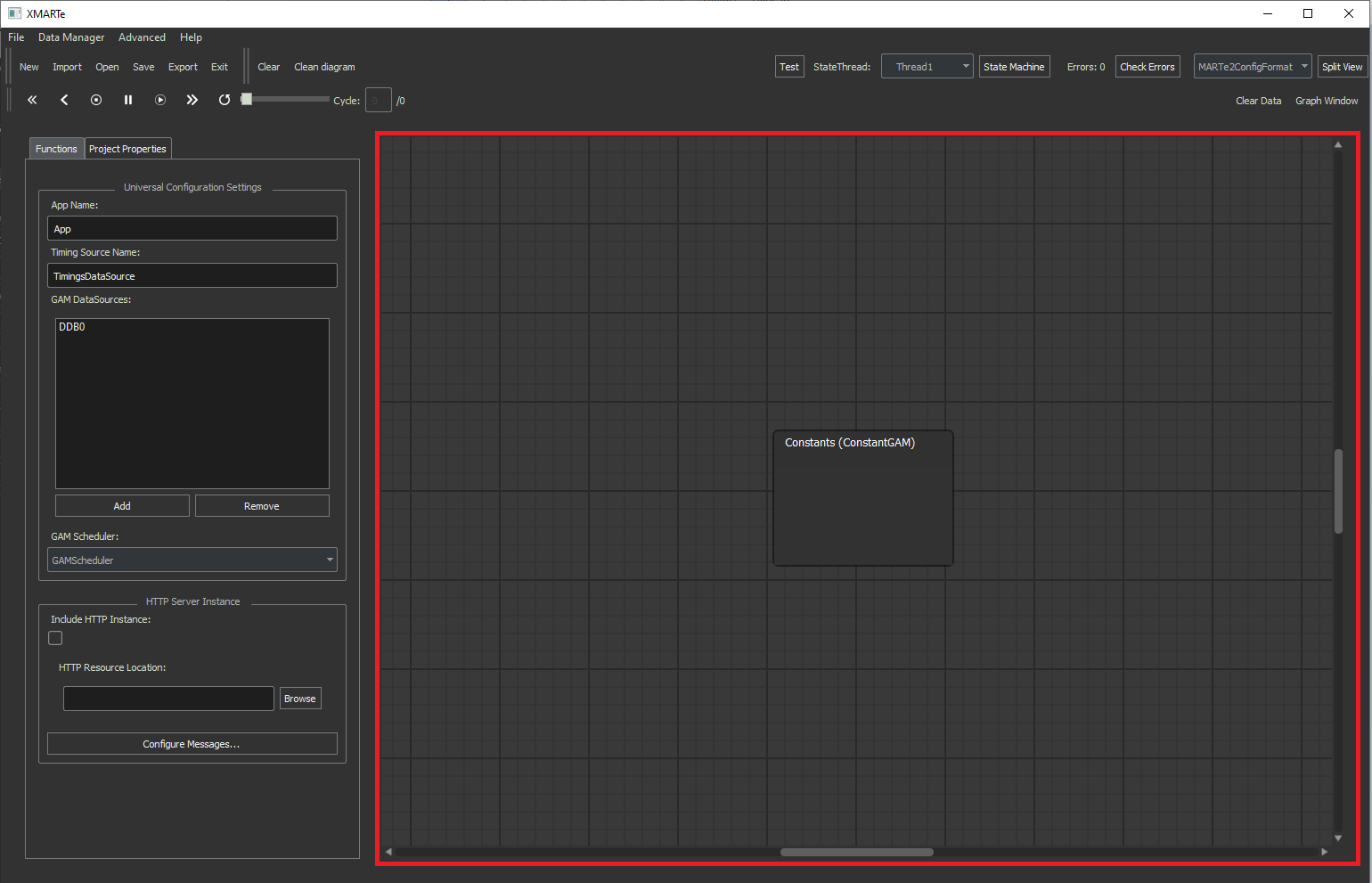
Scene/Thread
The scene or otherwise referred to as the thread is the graphical representation of the thread that you build in the GUI. Sometimes called the scene to provide differentiation from this and other representations of the application such as the split view.
Split View
The split view provides a secondary panel alongside the displayed scene which provides a textual representation of the application depending on the configured output file type to display. Options are MARTe.cfg and whatever additional formats are provided by plugins.
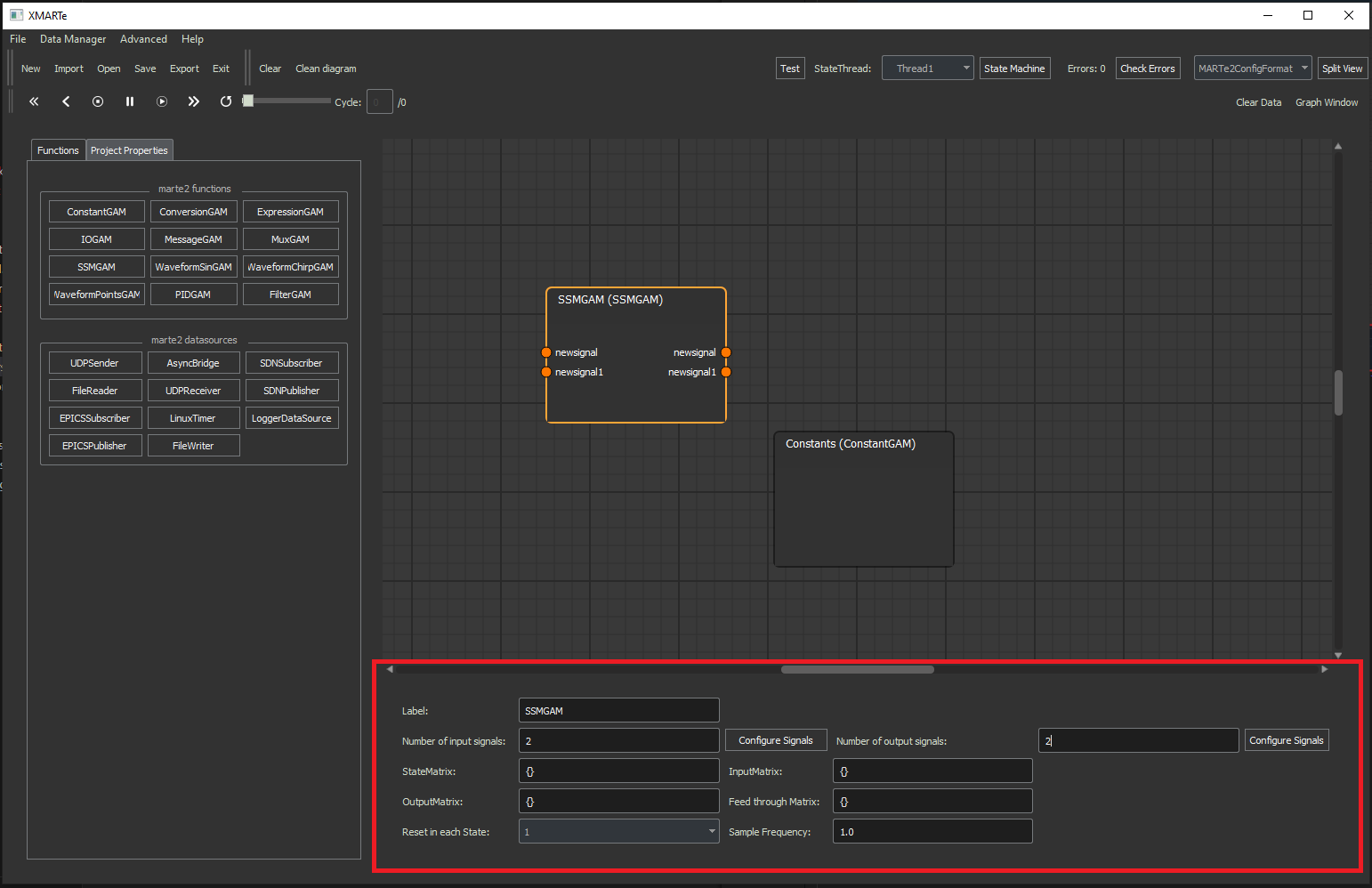
GAM/DataSource Configuration Bar
The configuration bar provides the parameters of a GAM/DataSource and is accessible by double left clicking a block. Once displayed you can modify the parameters for the selected GAM/DataSource.